

Adding an Incoming Webhook
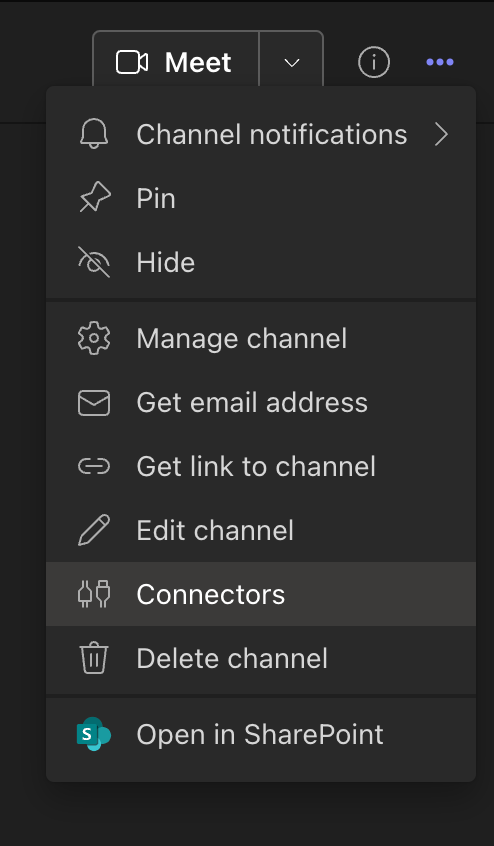
- Open the channel where you want to receive alerts and select ••• from the upper-right corner.
- Select Connectors from the dropdown menu.
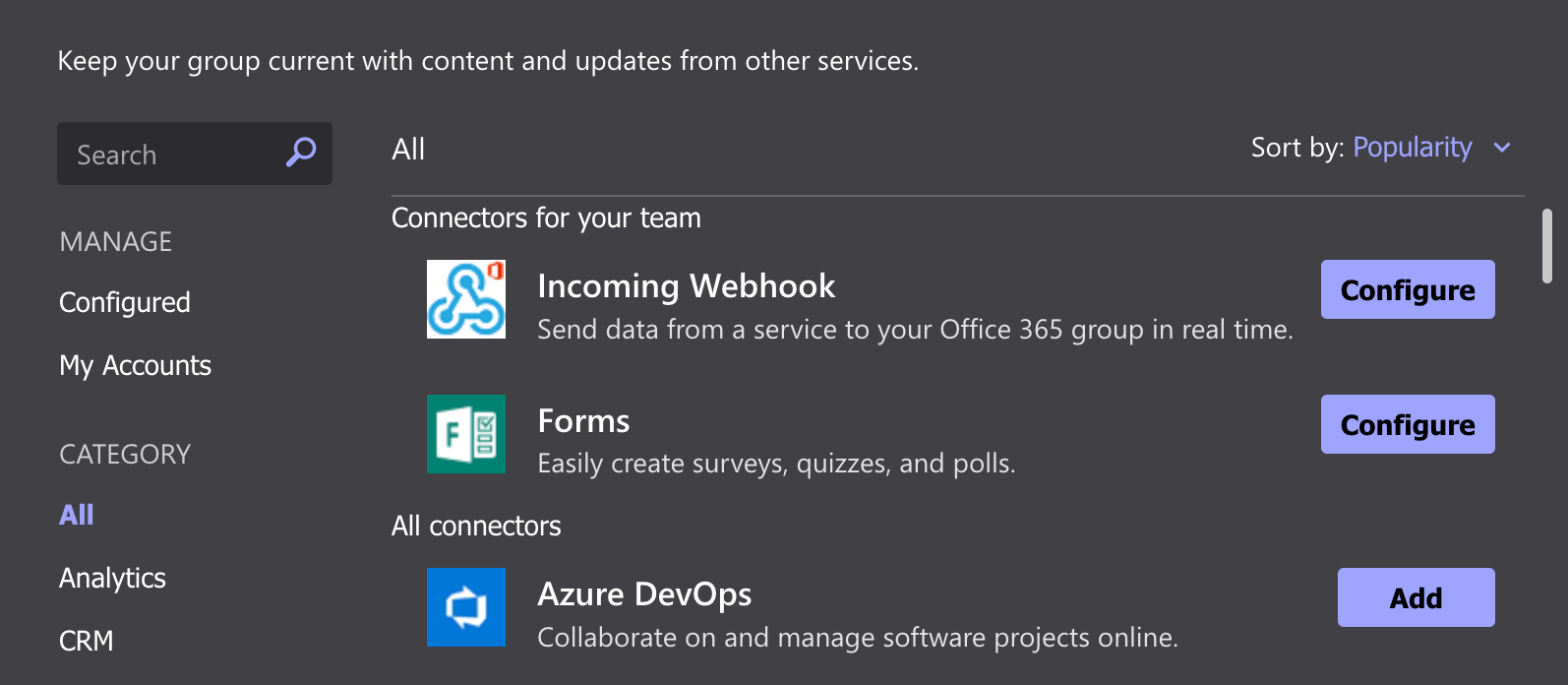
- Search for Incoming Webhook and select Configure.
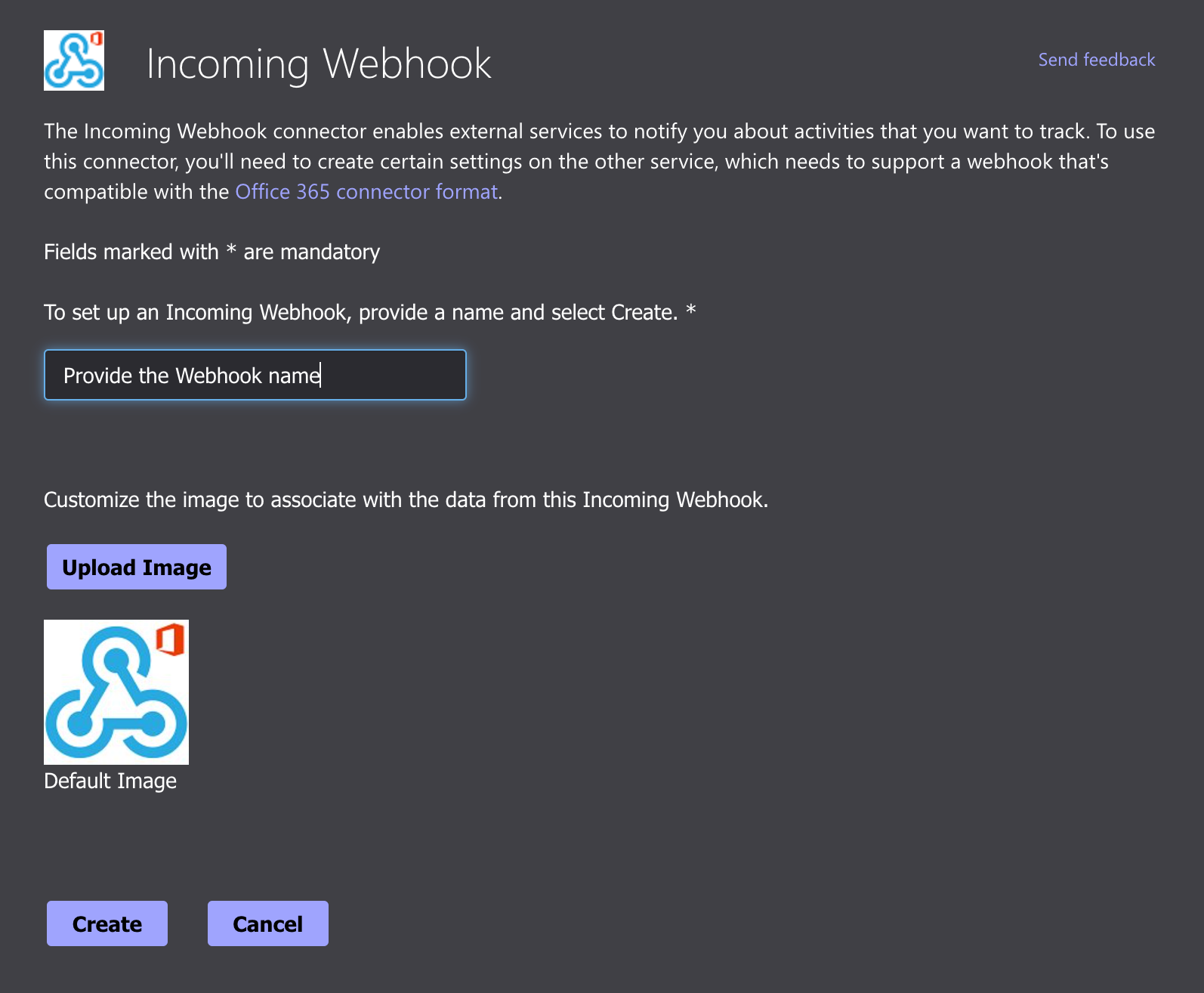
- Provide a name and optionally upload an image for your webhook, then click Create.
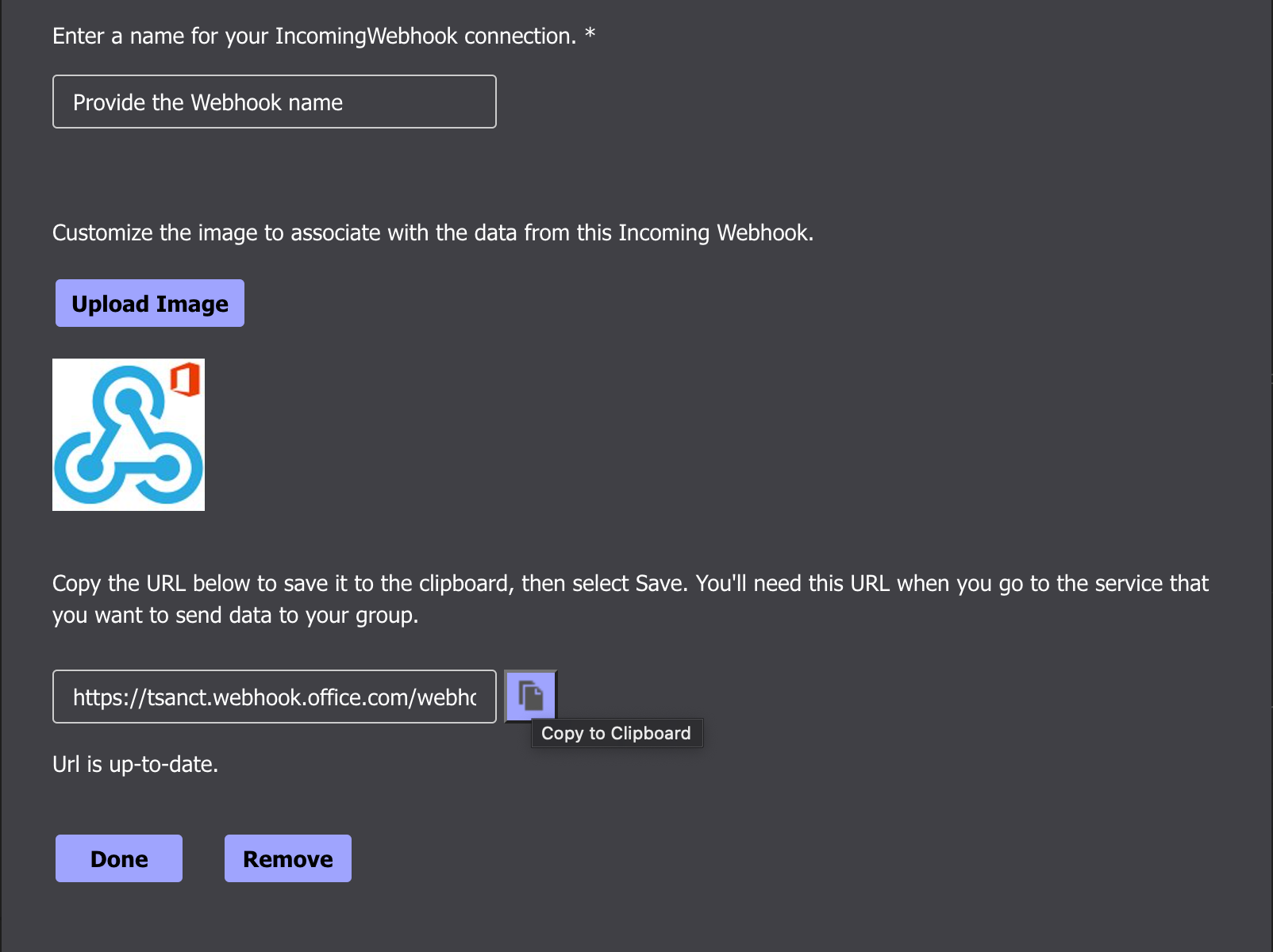
- Microsoft Teams will generate a webhook URL for that channel. Click to copy it - you’ll need this in the next step.
In Teams, go to Settings → Member permissions → Allow members to create, update, and remove connectors so that any team member can add, modify, or delete a connector.