Step 1 - Create a Power Automate Flow
- Open Power Automate and sign in.
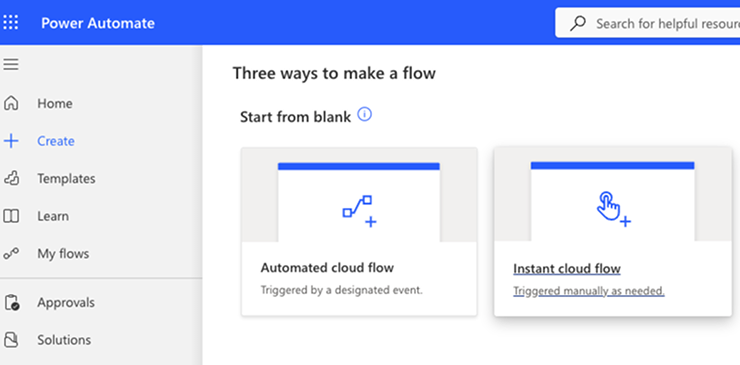
- Select + Create → Instant cloud flow.
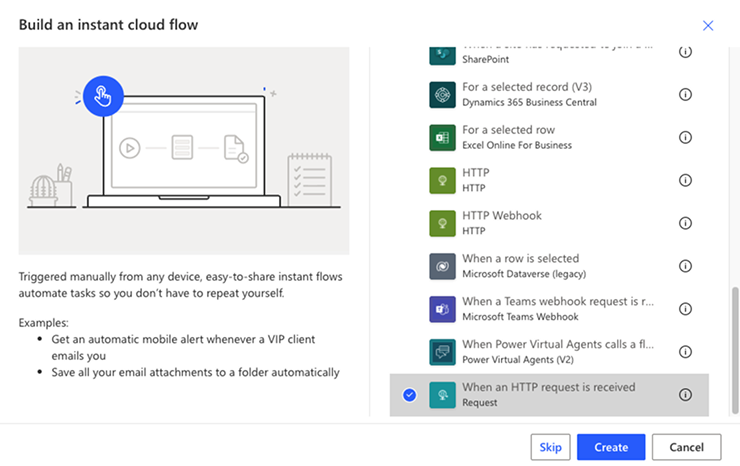
- Search for the trigger When an HTTP request is received (green icon) and select it, then click Create.
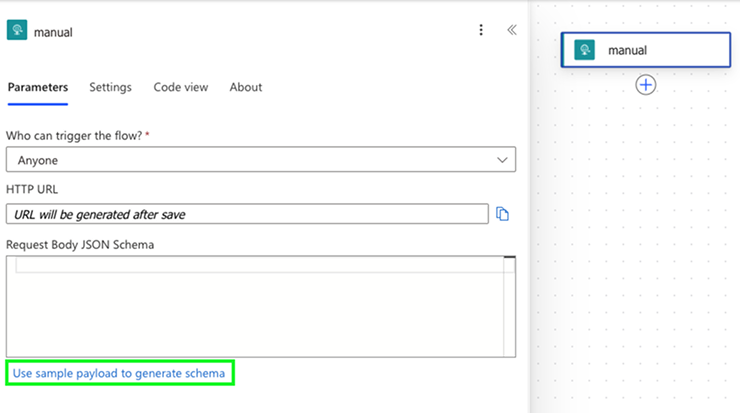
- Click on the trigger to expand it.
- Under Who can trigger the flow, select Anyone.
- In Request Body JSON Schema, click Use sample payload to generate schema.
- Paste the following sample payload and click Done:
- Leave all other settings as-is.
Step 3 - Add the Microsoft Teams Action
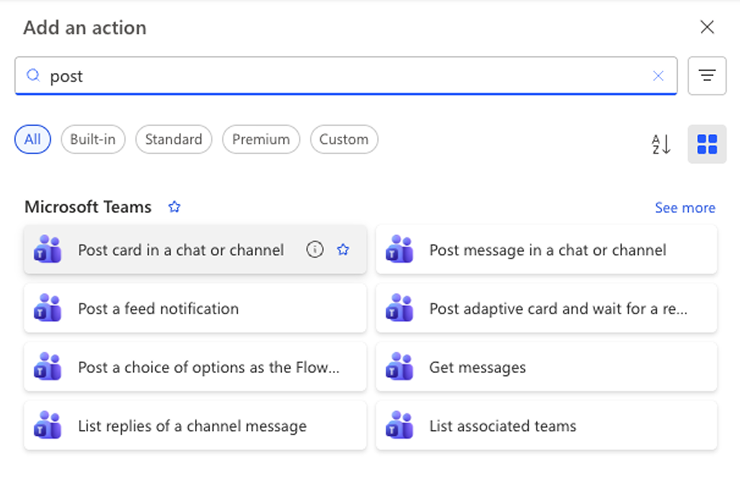
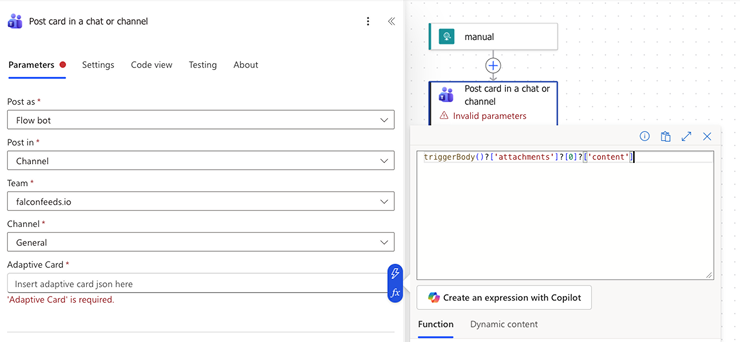
- Click + New step, search for Post card in a chat or channel (Microsoft Teams) and select it.
-
Configure the following fields:
-
In the Adaptive Card field, open the Expression tab and paste:
- Click Add.
Step 4 - Save and Copy the Webhook URL
- Click Save and wait for the flow to be saved.
- Re-open the HTTP trigger and copy the HTTP POST URL.
Keep this URL secure. Anyone with this URL can trigger your flow.
Step 5 - Share the Webhook URL with FalconFeeds
In your FalconFeeds Dashboard, go to Settings → Integrations → Microsoft Teams, click Add, and paste the URL copied from the Power Automate flow.