Connecting your Slack app
- Click on the Connect button to initiate the integration. You will be automatically redirected to Slack’s secure authorization page, where you’ll be prompted to enter the URL to your Slack workspace.
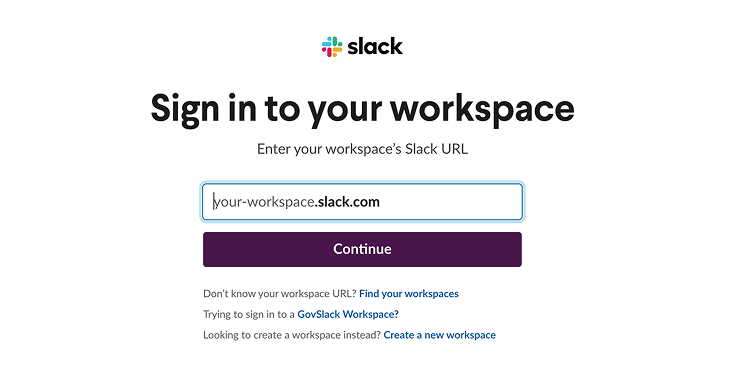
- Type in the URL associated with your Slack workspace and proceed. Follow the on-screen prompts to sign in to your Slack workspace using your credentials.
- Once signed in, you will be prompted to select the channel in your workspace where you want to receive alert notifications. Choose the channel that best suits your preferences and communication needs.
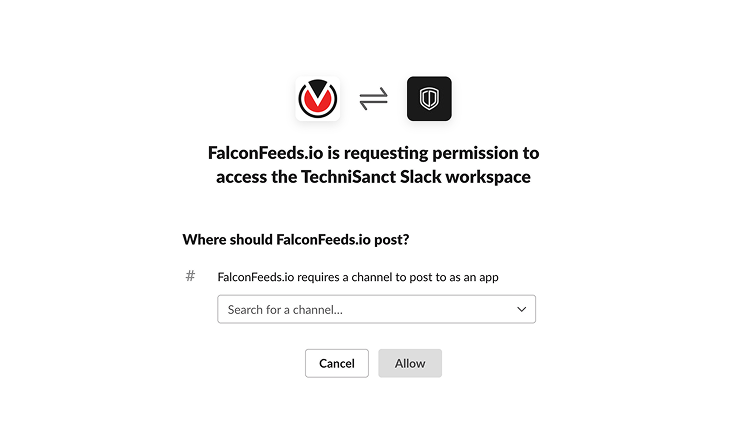
Selecting a channel for notifications requires the necessary permissions within your Slack workspace. Ensure that you have the appropriate privileges to modify channel settings for the seamless posting of notifications.
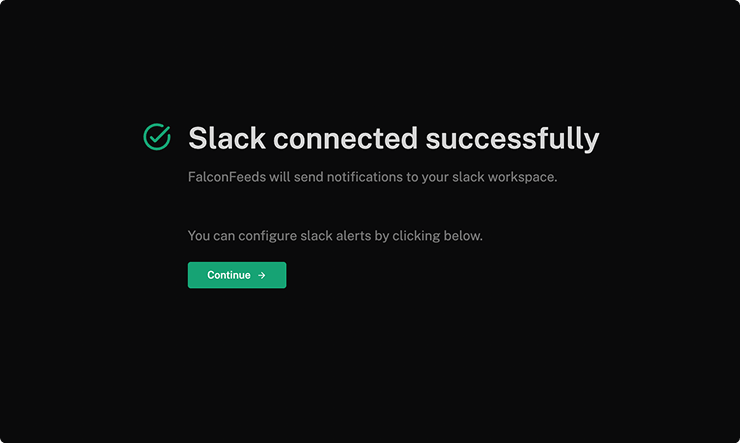
- Once you choose a channel and allow the necessary permission to post alerts in your channel, you will get a confirmation message indicating that the FalconFeeds notification system has been successfully integrated with your Slack channel.
- You can further customise the topics for which you want to receive alerts by clicking Continue.